Settings
Fine-tune how AEC4D-PRO exports to After Effects.
Table of contents
Path to After Effects
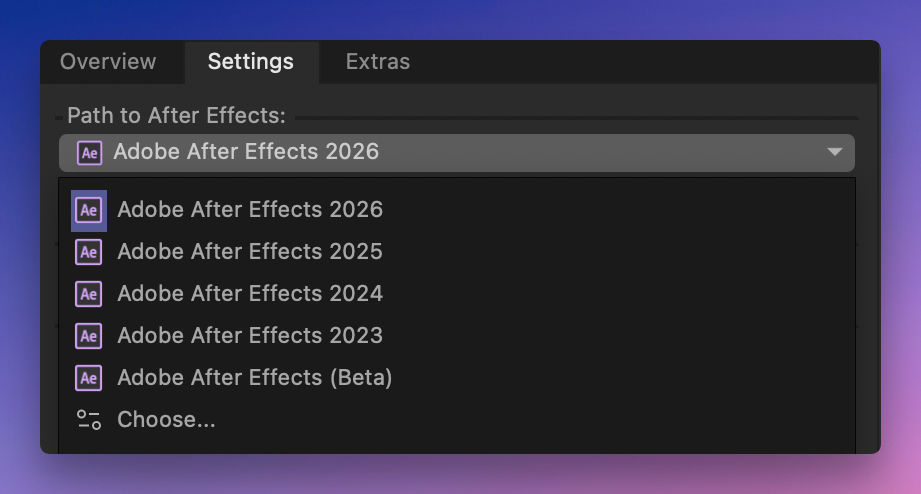
The dropdown is populated with all After Effects versions found on your system.
If no version is found, you can specify a path manually by selecting Choose...
Time-Settings
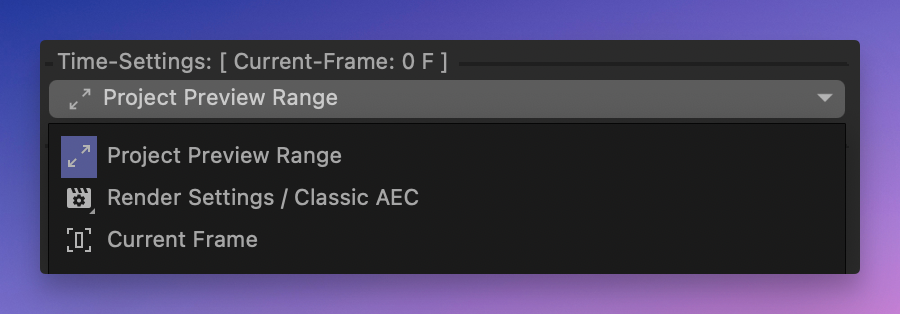
Choose which frame range gets exported:
- Project Preview Range
- Render Settings / Classic AEC
- Current Frame
Size: [ 100cm = 100px ]
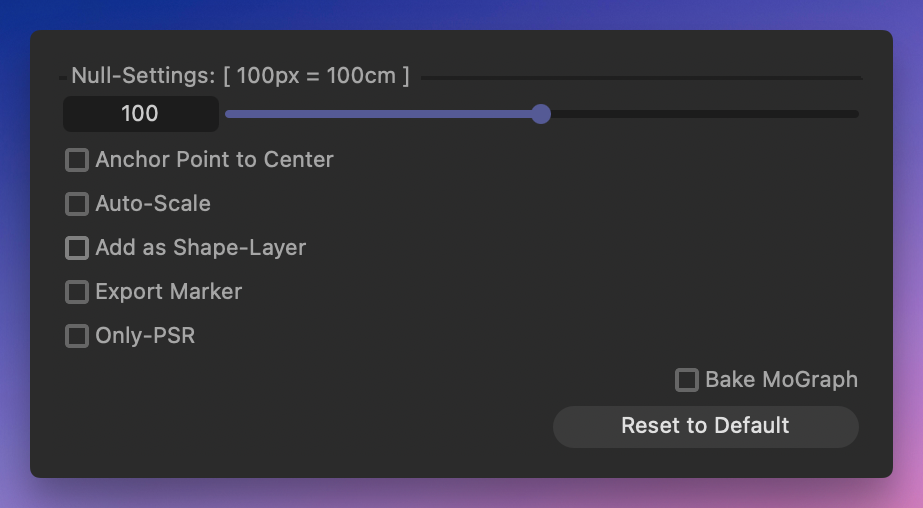
Define a Size between [ 1…30.000 ] for your Nulls or Shape-Layers.
Project Scale Multiplier
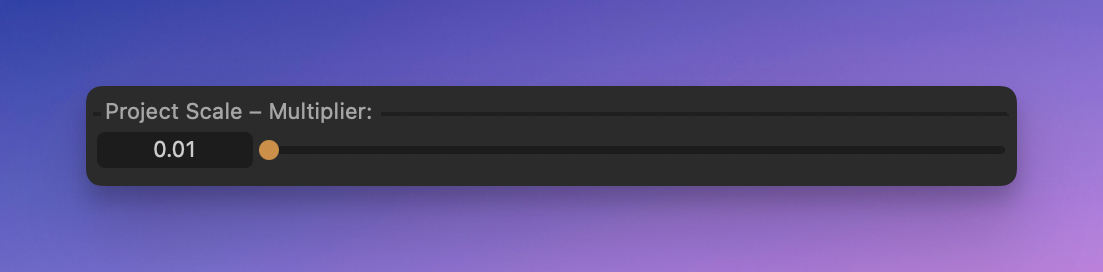
Every exported value is multiplied by this factor. Use it to keep your After Effects project in a sensible range: scale a huge Cinema 4D scene down (e.g. 0.01) or a tiny one up — instead of ending up with huuuge or way too small values on your layers.
Anchor Point to Center
Say you have a [50, 50] Shape/Null. By default the Anchor Point is placed at [0, 0]. With this option enabled, the Anchor Point is always at the center of the Shape/Null — i.e. [25, 25].
Auto-Scale
Uses the Bounding-Box of the Object — [X, Y] for the Size.
As Null-Objects have no Bounding-Box, the Object > Radius is used instead.
Add as Shape-Layer
Insert Shape-Layers instead of Null-Objects. Keeps the project clean, man… 🤩
Export Marker
Exports Markers found in the Cinema 4D document.
Requires After Effects CC 2017 or newer:
- Setting Markers via script was added in After Effects 14.0 (CC 2017)
- Setting Marker Duration was added in Cinema 4D R17 / R18
Only-PSR
Only export Position, Scale and Rotation data. If you have changed something in After Effects and don’t want your Size, Color or Font-Style to be overwritten with the next export, use this option.
Bake Mograph
Enable this option if you want to export Objects using Mograph, Generators or Effectors.
Reset to Default
Simply resets your Settings to default.
Import Passes
By default the path from your Render Settings (Regular Image ‘File…‘) is used to search for Multipasses and Footage — c4d-tokens and relative paths are converted automatically. You can also specify your own path by enabling the checkbox.
