Overview
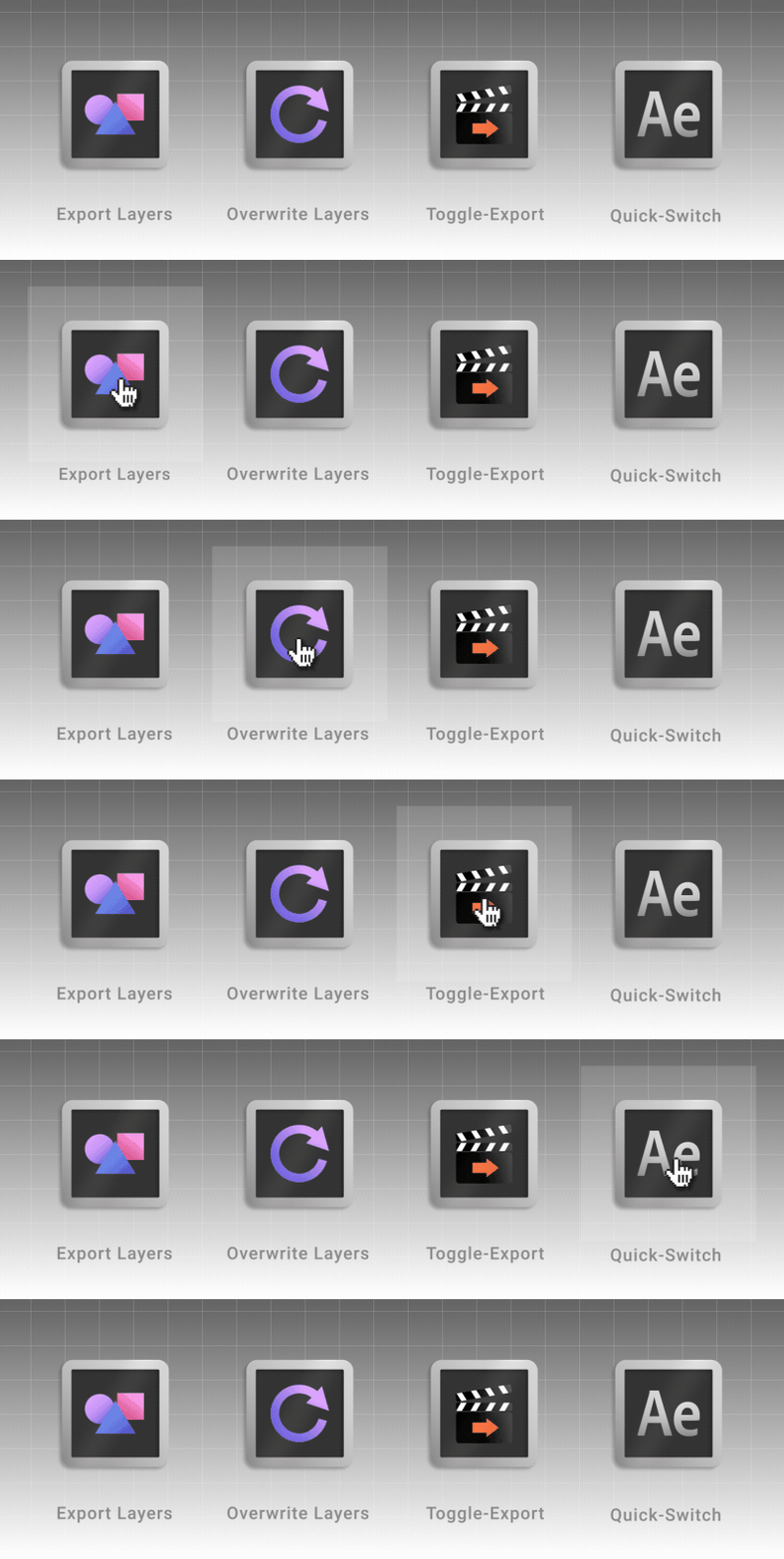
Four buttons are all you need — everything in AEC4D-PRO happens from the Overview tab.
Export Layers
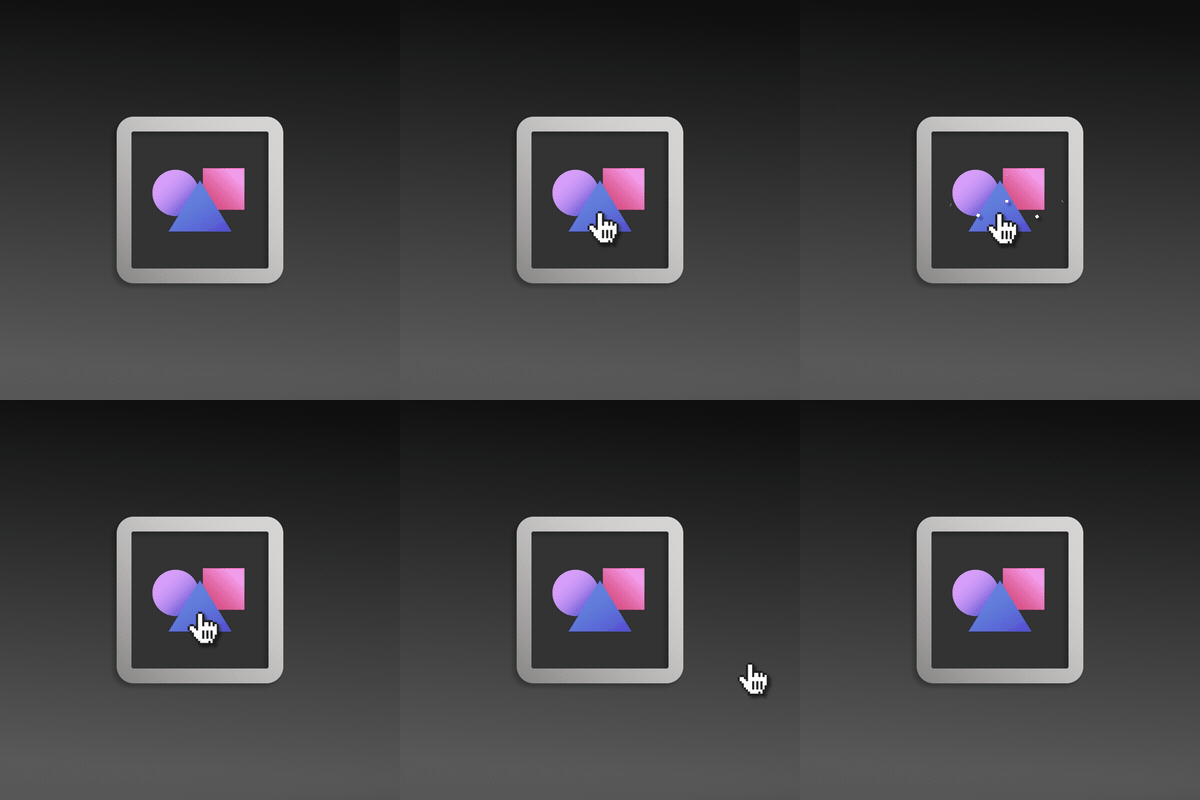
| Click | What happens |
|---|---|
| No Selection | Export all Layers into a new Composition |
No Selection + SHIFT |
Export all Layers into the active Composition |
| Selection | Export selected Layers into a new Composition |
Selection + SHIFT |
Export selected Layers into the active Composition |
Overwrite Layers
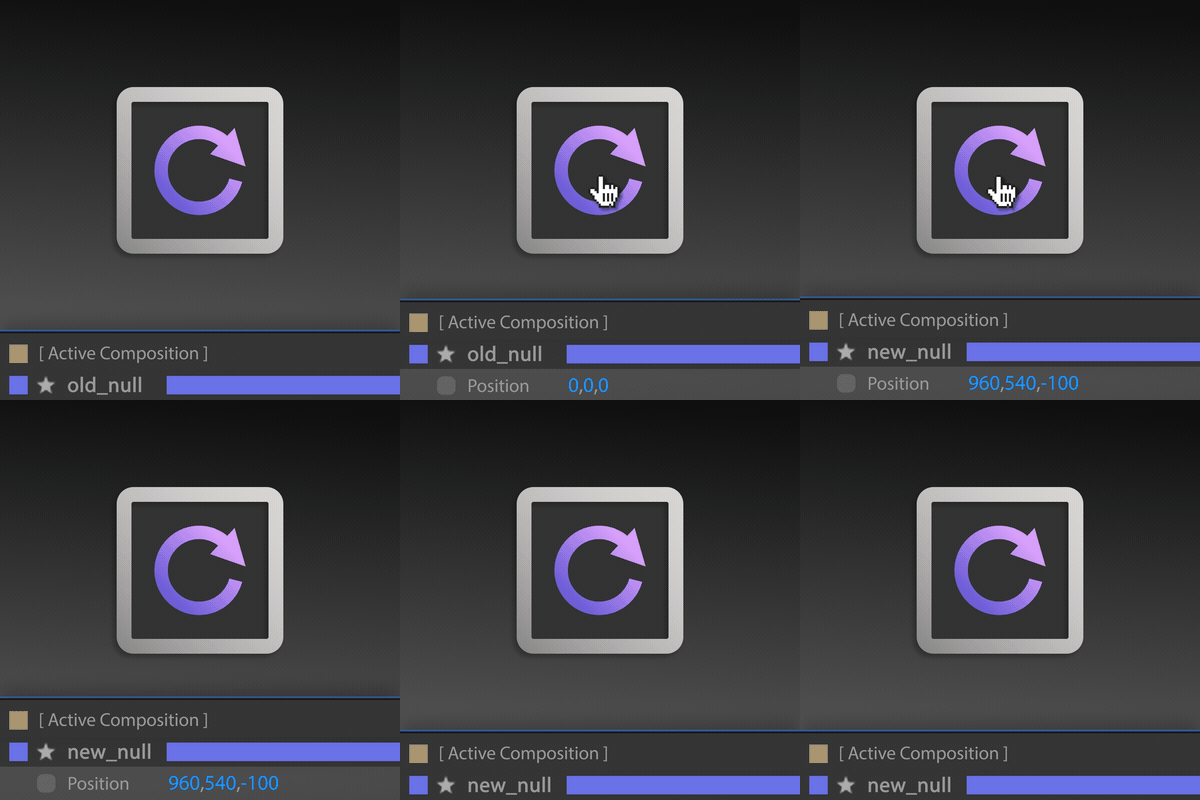
| Click | What happens |
|---|---|
| No Selection | Overwrite all Layers in the active Composition |
| Selection | Overwrite selected Layers in the active Composition |
You’ve exported Objects to After Effects, changed some parameters, and now you only need to update those Layers in your current Composition? No problem — AEC4D-PRO knows which Objects you’ve exported!
Select the Objects you want to update and hit Overwrite Layers — they are updated instantly in After Effects.
Toggle Export

Toggles the Export-Settings of the selected Object.
Quick-Switch for After Effects
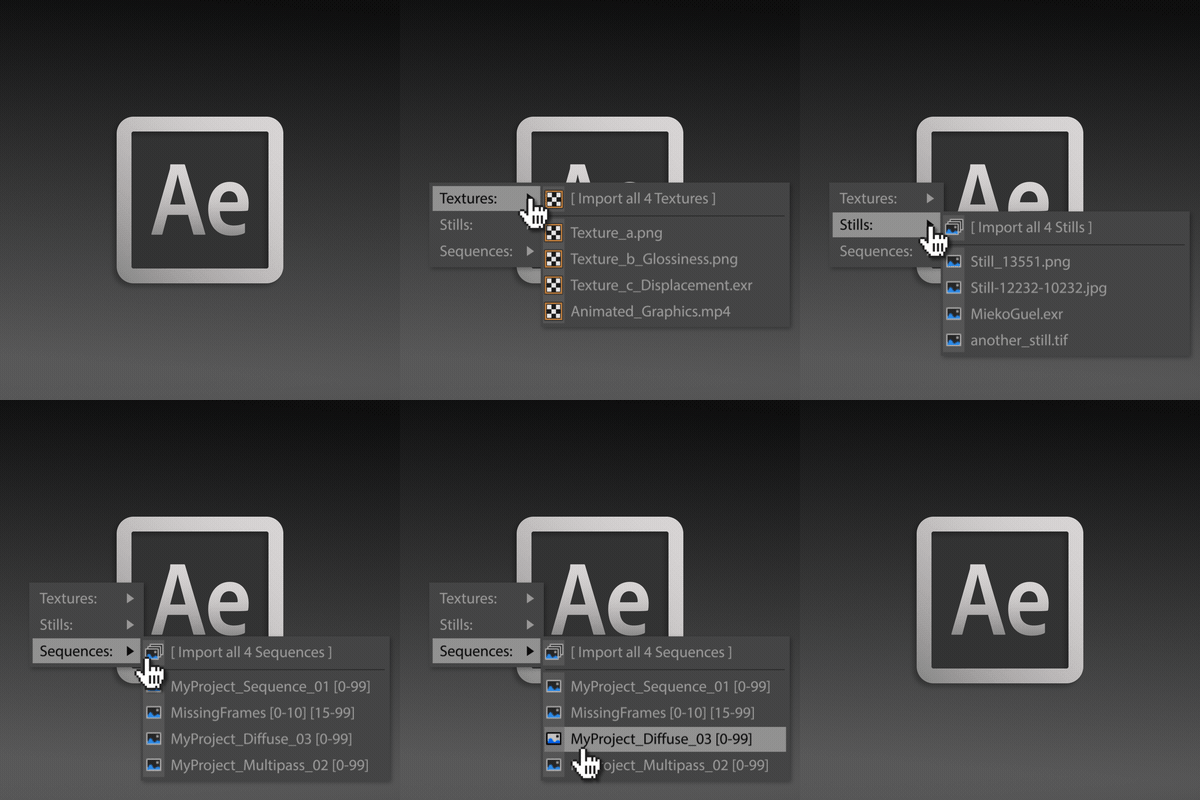
| Click | What happens |
|---|---|
CLICK |
Open After Effects if it’s closed, or activate your selected version |
ALT+CLICK |
Switch quickly between your installed After Effects versions |
SHIFT+CLICK |
Import Textures, Stills & Multipasses |
By default the path from your Render Settings (Regular Image ‘File…‘) is used to search for multipasses and footage — c4d-tokens and relative paths are converted automatically. You can also specify your own path in the Settings.